Beyond Basic Prompts : Putting the Science of Precision AI Photo Editing to the Test
You dont just need to start throwing around words like 'ultra 8k' or 'hyper-realistic' to generate some top-notch visuals with todays generative AI - the real trick is to get inside the brains of models like Google Gemini's Imagen engine and the latest version of OpenAI's ChatGPT (DALL-E 3) that can interpret prompts in a way that actually means something.
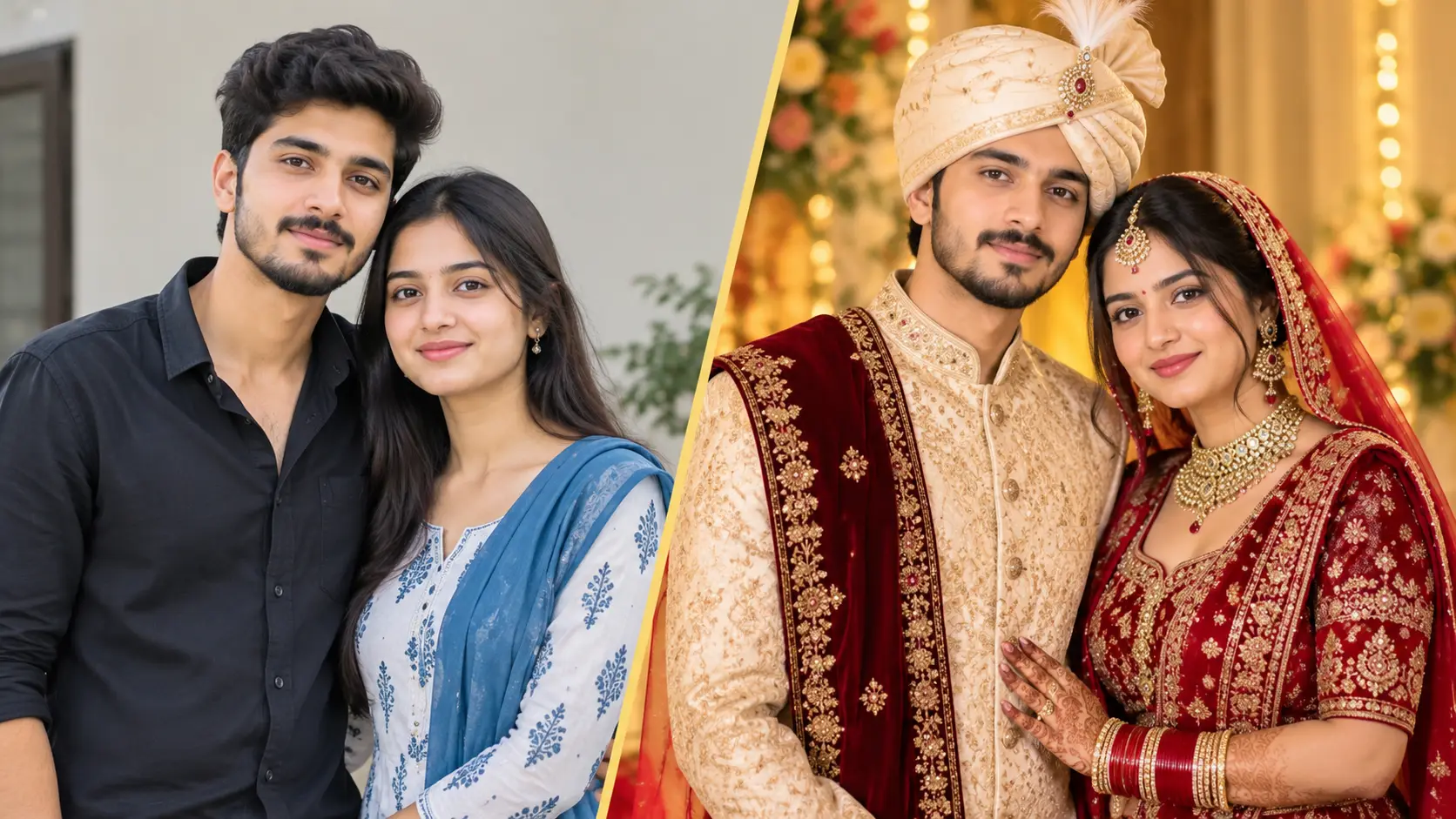
Here at Editing Forge, our entire prompt library is built on a surprisingly complex foundation, with a structured approach that really delivers lifelike skin textures, lighting that looks 100% right and depth of field effects that feel spot on.
To get the kind of results you really want, you need to understand the five key things that make a prompt great :
-
Subject Specificity: rather than going for some vague generic description, try to be really specific about things like what ethnicity, posture, expression and facial features your subject has.
-
Optics & Perspective Give the AI some actual camera settings to work with - things like using a 35mm street photography lens, f/1.8 aperture, or taking a real close-up from eye level to get the kind of blur and realism you want.
-
Lighting Mechanics Give it a bit more credit than just saying "good lighting" - try actually defining where the light is coming from instead, like when it's that lovely diffused golden hour sunlight, when the neon signs are blazing away in the background, or when its a soft Rembrandt window light that's casting that warm glow
-
Material Textures Don't just say "realistic" - tell the AI what it should be going for - like real micro-fabric weaves, deep natural skin pores, moisture or real cinematic film grain on 35mm film
-
Color Grading dont be afraid to get a bit fancy with the colours either - things like that warm handsome look you get from Kodak Portra, something a bit moody and muted with a bit of teal going on, or * a good old fashioned high contrast monochrome*.
Getting to Grips with the Engines: Gemini vs ChatGPT for Photo Generation
The truth is, while both Gemini and ChatGPT can produce some seriously amazing imagery, the way they go about creating it is fundamentally different.
Understanding these subtle differences will make a whopping difference in how well your images turn out when you paste prompts from Editing Forge:
1. Google Gemini (Imagen 3 Engine): Gemini tends to knock it out of the park when it comes to photorealism, and it's got a particular talent for getting human skin just right - as well as how light behaves in the real world.
However, to get the best out of it, you need to give it prompts that are clear, direct and absolutely to the point. No beating around the bush or trying to be too clever - just straightforward physical descriptions that tell it exactly what to do.
If you want to produce raw, honest shots that feel like you just happened to capture something natural, or traditional portraits without all the fuss, Gemini is generally the way to go.
That way you get fewer of those plastic-looking artefacts that can ruin a pic.
2. ChatGPT (DALL-E 3 Engine): This one is absolutely brilliant at understanding the bigger picture - and has the added bonus of automatically beefing up your prompts to really bring the composition to life.
ChatGPT shines when it comes to multi-subject interactions, those surreal aesthetic edits, or even designing in 3D from scratch.
But to stop it from over-accessorizing or just plain cartoonizing the image, you need to remind it to stick to "candid documentary realism with a neutral dynamic range."
How to Personalize Editing Forge's Prompts in 3 Easy Steps
Editing Forge's pre-made prompts are pretty versatile - and can be easily modified to suit your own personal style or brand:
-
Copy that Base Prompt: Pick any trend you like from Editing Forge - whether it's the old school aesthetic or a movie-style vehicle concept - and just hit one click to copy the prompt.
-
Rip Out the Dynamic Variables: Find those little brackets with attributes like outfit colour, location, or facial expression in them, and just swap them out for the details you want.
-
Tell it What Not to Do: If your chosen AI tool lets you use negative prompts, try telling it to avoid things like smoother-than-skin should have, deformed hands, too many fingers, or an over-glossy CGI look.
3 Golden Rules to Steer Clear Of The "AI Look" and Plastic Skin
The most common mistake creators make is relying wholeheartedly on buzzwords that actually do more harm to image quality than good.
The Editing Forge team has done us a solid by distilling these rules down to something anyone can use:
-
Cut The Buzzwords: Words like "photorealistic," "masterpiece", and "8k HDR" are basically ignored or trigger over-sharpening filters. Just throw in some actual camera specs - e.g., "shot on a Hasselblad 500C" is a good place to start.
-
Expect a Little Flawed: Real photos have lens flare, tiny bits of motion blur, asymmetric expressions & flyaway hair that just looks messy. Adding a bit of "film grain and the odd little imperfection here and there" tricks the neural network into backing off the aggressive beauty tweaks.
-
Sort Out Your Aspect Ratio: Always keep a lid on the aspect ratio that fits the platform you're on (e.g. --ar 9:16 for a decent Instagram Reel, TikTok, or --ar 16:9 for YouTube banners & desktop wallpapers where things don't get squished).
Frequently Asked Questions
Are the Photo editing prompts on Editing Forge free to use on commercial projects?
Yeah, they are. All the prompt formulas we've got on Editing Forge are open access & available for anyone to use. The images that actually get generated depend on the commercial terms of the platform you're using - e.g. ChatGPT Plus, Google Gemini, or Midjourney.
Can I use these prompts on a mobile phone?
Of course you can. Every prompt is designed so that you can just yank them straight onto a mobile app - Gemini, ChatGPT, or Bing Image Creator.
Why do my faces sometimes look all messed up?
Face distortion often comes from trying to cram a wide-angle shot with someone who's a bit too far from the camera. Swap up to a "waist-up medium shot" or a "close up" to let the model put a bit more pixel love on the facial features.